
How To Add Holiday Hours to Google Business Profile

Updated: Apr 28
It’s the day before a major holiday, and your best customer is racing across town to grab a last-minute gift at your shop, or perhaps a hungry family is searching for a late dinner option nearby. They check your business on Google, see outdated hours, and decide to try your competitor instead. In just seconds, you’ve missed an opportunity, all because your Google Business Profile didn’t reflect your real holiday schedule.
The truth is, your digital storefront is open all day, even when your physical doors aren’t. With a few savvy clicks, you can turn casual searchers into loyal customers by keeping your holiday hours accurate and up to date. The good news? Updating your Google Business Profile for holiday or special hours is one of the smartest ways to stand out in crowded local searches, increase foot traffic, and build genuine trust with your community.
In this blog, we'll walk you through how to add holiday hours to your Google Business Profile, and share best practices for making your business profile visible when it matters most.
Why Add Holiday Hours to Your Google Business Profile?

Customers check Google first: Did you know most shoppers now search “open near me” on holidays? If your hours aren’t accurate, they may go elsewhere.
Enhance trust: Nobody likes the frustration of seeing a “closed” sign after driving in for a purchase.
Boost rankings: Google rewards updated, well-maintained profiles. More accurate info means higher chances of appearing for searches like “bookstore open today” or “restaurant open Christmas.”
Avoid negative reviews: Mismatched hours lead to unhappy visitors and bad reviews that linger.
Step-by-Step: How To Add Holiday/Special Hours on Google Business Profile
1. Sign in to Your Google Business Profile Manager
Go to Google Business Profile Manager and log in with your business account.
2. Locate Your Business Listing
If you manage multiple locations, select the right one.
Click “Manage Profile” next to your business name.
3. Navigate to the Hours Section
On the dashboard, select “Edit Profile.”
Go to the “Hours” or “Info” tab.
4. Add ‘Holiday Hours’ or ‘Special Hours’
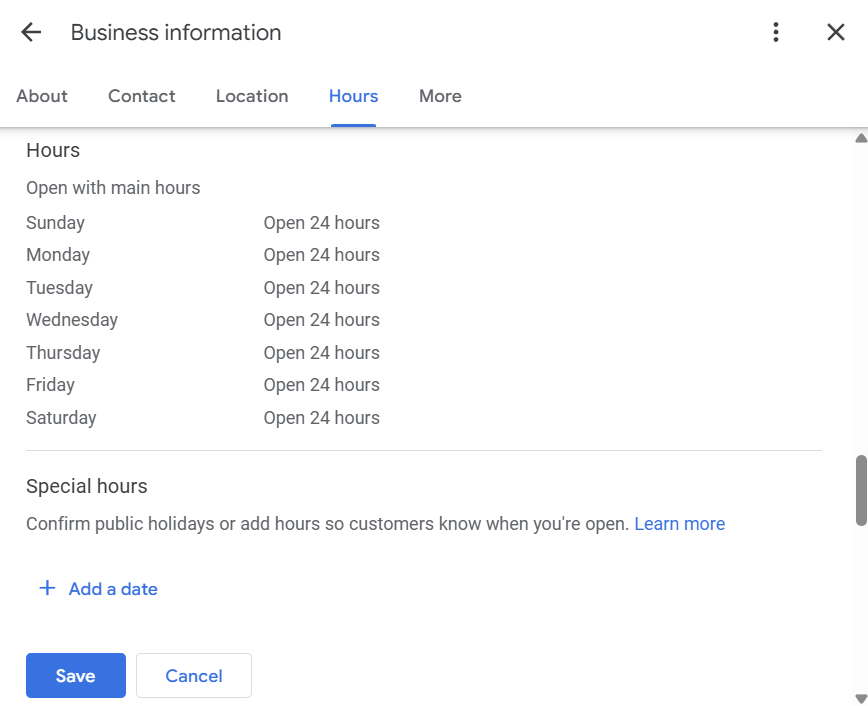
Scroll to “Holiday hours” or “Special hours.”
Click the ‘pencil’ icon to edit.
You’ll see common holidays pre-listed (like New Year’s Day), or you can add your own special dates (e.g., a local festival or personal day off).
If closed for a specific day: Check the “Closed” box.
If open with different hours: Uncheck “Closed” and enter the adjusted opening/closing times.
For split hours (e.g., open 9–12, 2–6): Use “Add hours” for different time blocks.
5. Save, Review, and Test
Carefully review for accuracy. Even a single wrong date can mislead hundreds of customers!
Click “Save.”
Pro tip: Google notes that changes may take up to 72 hours, so update well in advance of the holiday rush!
6. Verify on Google Search & Maps
After updating, Google your business name to make sure the hours show correctly in both Search and Maps.
Pro Tips to Maximize Your Google Business Profile’s Holiday Visibility
Update Early: The sooner you update, the better. Late December edits might miss last-minute shoppers!
Update All Holidays: Even if you stay open as usual, confirm your hours, and Google highlights verified profiles.
Set More Hours: Offer delivery or pickup? Add those in the “More hours” section.
Cater to Shoppers: Post a “holiday announcement” in your GBP for extra visibility, such as “We’re open late for Diwali shopping!” This really grabs attention.
Consistent Cross-Posting: Share your special hours on your website, Facebook, Instagram, and via email. Meet customers where they are.
Final Thoughts & Next Steps
Updating your Google Business Profile for holiday hours is one of the quickest wins in local SEO and customer service. Don’t let outdated hours turn an opportunity into a missed connection. Instead, use your Google Business Profile as your digital welcome mat that shines a light on every special day, every celebration, and every reason your business is worth the visit.
If you’re not sure where to start or want to automate your marketing, customer emails, and website updates, Pravaah Consulting is here to help. Contact us for AI-driven, results-oriented business solutions today. Let’s keep your customers in the know and your business booming this holiday season!
FAQs
1. How do I add holiday or special hours to my Google Business Profile?
Sign in to your Google Business Profile, navigate to “Hours” or “Info,” select “Holiday hours” or “Special hours,” choose the dates, and enter your hours or mark as closed. Don’t forget to click save and check your profile publicly!
2. Why is it vital to update Google Business Profile holiday hours?
It lets customers know your actual schedule, builds trust, prevents disappointment, raises your search rankings, and keeps you ahead of competitors who forget this important task.
3. Can I set special hours for non-traditional holidays or private events?
Absolutely! Use “Special hours” for any date—retail inventory days, private parties, or repairs—not just official holidays. Keeps everyone in the loop.
4. How fast do my holiday hour updates appear to the public?
Updates can take anywhere from a few minutes to up to 72 hours. It’s smart to plan several days ahead, especially for major or widely-observed holidays.
5. What if I’m closed for over six days?
Use the “Mark as temporarily closed” feature within your profile for extended closures, so clients won’t be misled.
6. Will Google automatically revert to my standard hours?
Yes, once the special date passes, Google switches back to your regular schedule. No extra steps required!


